Here is the Photo makeover/ makeup tutorial on the desire of our precious reader Leena. She posted a comment on Create a Charismatic Paint Dispersion Photo Manipulation in Photoshop requesting this tutorial. The kind of photo retouching is very important in the field of Graphic Designing. This retouching forces the designer to use almost all the bitmap tools in software program.
This is one of the few effects which every student of Photoshop dreams to make one day when he or she is entering this field. Getting a clean result of digital retouching is an extremely tough job. Some people use Photoshop only for this purpose of making their pictures more attractive, clean and clear. Hope you all like this tutorial and don’t forget to give some feedback. Too much talking though, let’s take a look at the tutorial now.
Final Difference

Download Source File
Skin

Let’s start by adjusting the curves of the image of the model by pressing CTRL+M.

Now we are adjusting Color Balance. You can see the values I used for Midtones and Highlights by pressing CTRL+B.


Levels are up next. You can see the Levels dialog box by pressing the CTRL+L.

I selected Patch Tool for removing spots (pimples, dark areas etc.).

I applied the filter of the Blur from Filter>Blur>Surface Blur. Remember, before applying this filter, make a duplicate layer of the model by striking the CTRL+J, then apply the filter. This will add a diffusion effect that will pull away all the negatives from the skin.
Trick
When we blur the image, eyes, mouth and hair also get blurred and that looks unreal. And that is why we made the duplicate layer. Just erase these areas (eyes, hair, lips etc.) and you’ll get a gorgeous result from the duplicated layer below.

Hair
I made a new color layer for improving the hair color.

I changed the Layer style to the Multiply and Opacity to 89. You should of course test the result with your own values.

Eyes and Teeth
Here I adjusted the eye color by painting over the eyeballs on a new layer.

Whitening the area around the eyeballs wouldn’t be a bad idea.

The result up there may seem too sharp but it’ll get better. Now let’s adjust the teeth color in the same manner and set Opacity to 41.

Lips
I applied the Liquify filter with these Adjustments for balancing the Size of Lips.

Applying the Liquify filter.

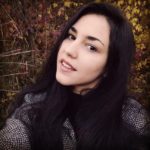
Final result

Difference


An amazing transformation!– and, a very instructive tute. Only a genius could have devised this technique– you, sir, are that man!! : )
Really enjoyed it, Waseem– thank you!
@Mark Armstrong
You guys will make me arrogant
but I like it that way. 
Glad you enjoyed it.
Ohh Waseem, Amazing and stunning to see the step by step initiative in showing the impact of the material object, effect to the person who views your involvement in molding it. Your creativity is excellent keep it up, their is really a great involvement . Hats off to you Genius.
I am thinking How to make this creativity reach many. Which may help you reach your potential ,any tips.please forward…………….
With Regards
K.S.Rajakumar
@K.S.Rajakumar
Thanks a lot for praising me so much
and about Tips I’ll ask Tayyab to right an article
Fantastic tutorial…. Thank u so much.. i really appreciate that you considered the tutorials which your reader want to learn and published…. Thank a lot…
you turned ordinary photo into an beautiful one…
Interesting tutorial..i will try the color correction used here….the result.is great!
@ art magic box
Glad to know that you find this tutorial useful
U R simply a talented Designer. Photography is also my passion but I have no Procreational SLR camera. May I be a good photographer. Pls leave ur comment on my mail ID. Thank u…..
Wow very good tutorial i like this post very much thanks a lot for sharing this awesome post !!!!!
@Clipping Path
You are being very kind to me
For me to much bluring – I’m retouch self for the modelkartei.de or reference on deviantart
Thanks waseem for the clearly set out steps and the source file.
i think she looked prettier without photoshop
many magazine title designers would disagree. Believe me, photoshopping is like going beyond nature, that’s not something that is suppose to be done, just like burning greenhouse gases. But it’s just something we do, we just have to it.
Leena is even more beautiful with freckles!
After that kind of skin manipulations you should at least ad some noise.
That’s not Leena, that’s a photo of a random person taken from deviantart stock.
Very nice Tutorials, Thank a lot
You’re welcome Dipar
Hey Waseem this is the best tutorial i have come across. Well explained and the results were just fabulous. Thank you so much for this information.
Thanks Sweta,
Glad to be helpful